Your first meeting
Starting a meeting, knowing what's on the screen, and ending it cleanly.
Show transcript
- On Home, tap Start Quick Capture. Recording starts right away.
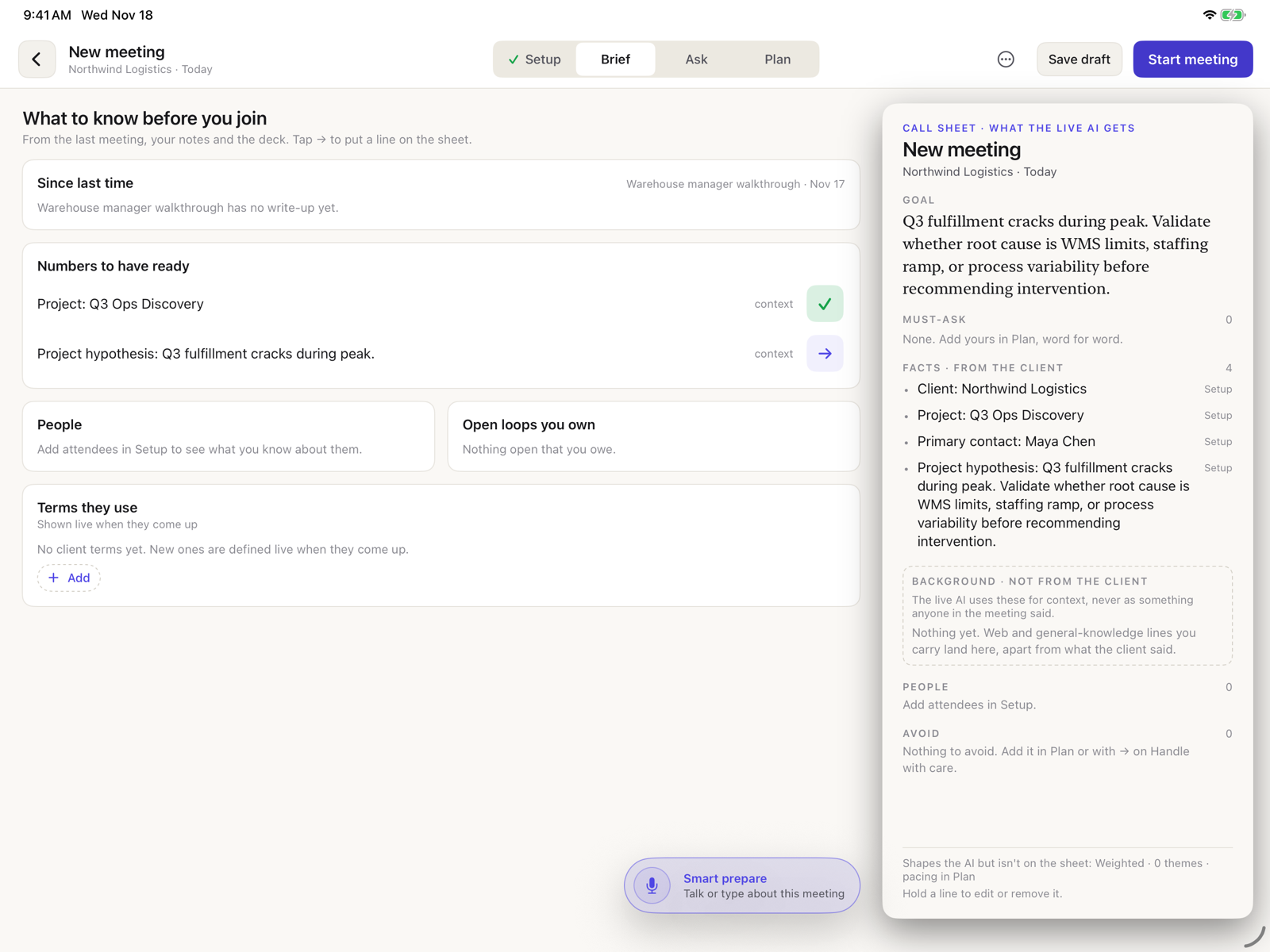
- Planning ahead? Open the meeting's Prep. The Brief shows what to know before you join.
- Tap the arrow on a line to put it on the call sheet. That's what the live AI works from.
- Tap Start meeting. Tell the room you're recording.
- Write on the page with Apple Pencil, the way you always do.
- Questions appear on the right. Each card says why it's asking and when it came up.
- Tap Asked when you've asked it, or Dismiss to let it go.
- The transcript runs below the page.
- When you're done, press and hold Hold to end, then confirm End.
- Review opens when the write-up is ready.
-
Two ways to start
Quick capture is for a meeting you didn't plan.
- On Home, tap Start Quick Capture. It starts recording right away.
- The meeting lands in Inbox / Unassigned. File it to a project later.
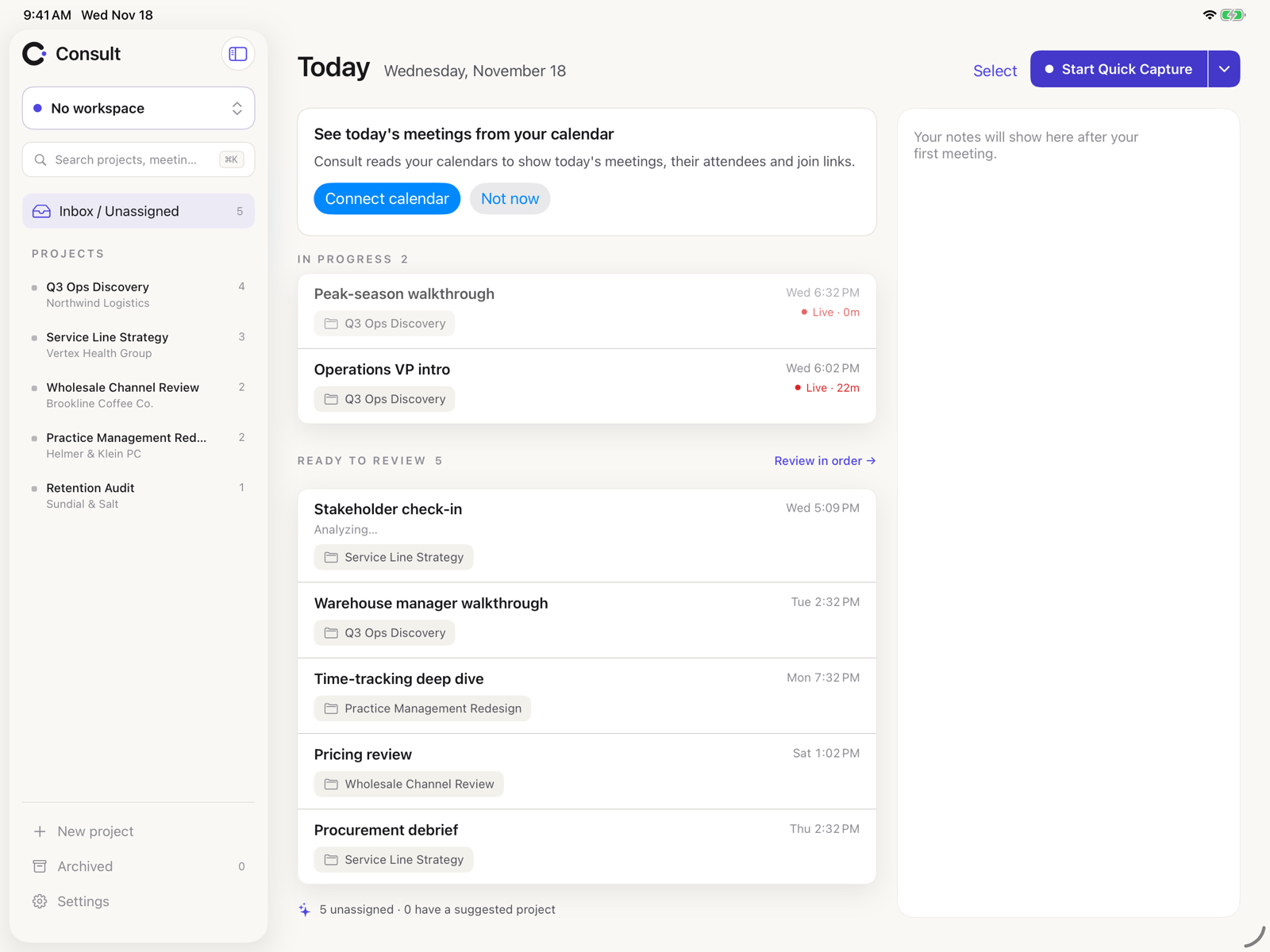
The arrow next to the button lists what else you can start: Meeting, Lecture, Demo (only the ones your workspace offers) and Start with notes. Start with notes opens a meeting with recording off. Nothing records until you tap Start recording.
A planned meeting gives you a call sheet first.
- On Home, find the meeting under Up next and tap Prep. From a project, tap New meeting.
- Work through the steps: Setup, Brief, Ask, Plan.
- Setup: title, when, attendees, meeting type, and files to attach.
- Brief: what to know before you join, from the last meeting, your notes and the deck.
- Ask: ask about the client, the last meeting or a term. Answers cite where they came from.
- Plan: your goal, the questions you must ask, and what to stay away from.
- Tap the arrow on any line to put it on the call sheet. The call sheet is what the live AI works from.
- Short on time? Tap Smart prepare and say or type what the meeting is about. You review every proposed change before it's kept. Speak to fill setup does the same for the Setup step.
- Tap Save draft to come back later, or Start meeting.
If anything needs attention, a Before you start sheet shows it first. It says You can start anyway. Problems stay on Status. It never blocks you.
-
Choosing the mic
- Default: the iPad's own microphone. It's best for a table of up to 6.
- Recording started later (Start with notes): tap the arrow next to Start recording (Choose source) and pick This iPad's microphone, External microphone or Join from your phone.
- More mics: phones can join as extra mics (chapter 8). On a Mac, call capture hears both sides of a video call (chapter 9).
- Microphone access: the first time, iPadOS asks to allow the microphone. If you said no, tap Open Settings on the banner Microphone access is off.
-
The live screen
[shot: ipad-live-questions-light][shot: ipad-live-questions-dark]- Top bar: a back arrow (the meeting keeps going if you go back to Home), the title, a status capsule in the middle, Pause and Hold to end on the right.
- Notes (left): your page. Write with Apple Pencil (chapter 3).
- Questions panel (right): the tabs Questions, Smart (smart notes) and Docs. Cards and chat are covered in chapter 4. Smart notes build themselves as the meeting runs.
- Shortcuts button (corner): Questions and Transcript are always there. You can add up to two more under Settings › Notes & Pencil › Corner shortcuts.
- Transcript: open it from the corner button. Names in dashed rings are best guesses until Review.
- Attach a document: the paperclip in the top bar. PDFs can be opened on your writing page.
-
Pause, leave and end
- Pause stops listening for a moment. It opens a checkpoint. Nothing is sent while paused.
- Leave (shown when you've joined someone else's meeting) leaves the meeting. It keeps going for the others.
- To end: press and hold Hold to end for about a second. A plain tap only reminds you to hold. Confirm End the meeting? with End. It says: This stops the recording and begins post-meeting analysis.
- Review opens when the write-up is ready. You can go back to Home meanwhile. Consult keeps analyzing and adds the meeting to your review queue.

