Getting started
Getting Consult onto your devices and into your team's workspace.
Show transcript
- Open the invitation on your iPad. TestFlight opens first if you need it.
- Tap Install, then open Consult.
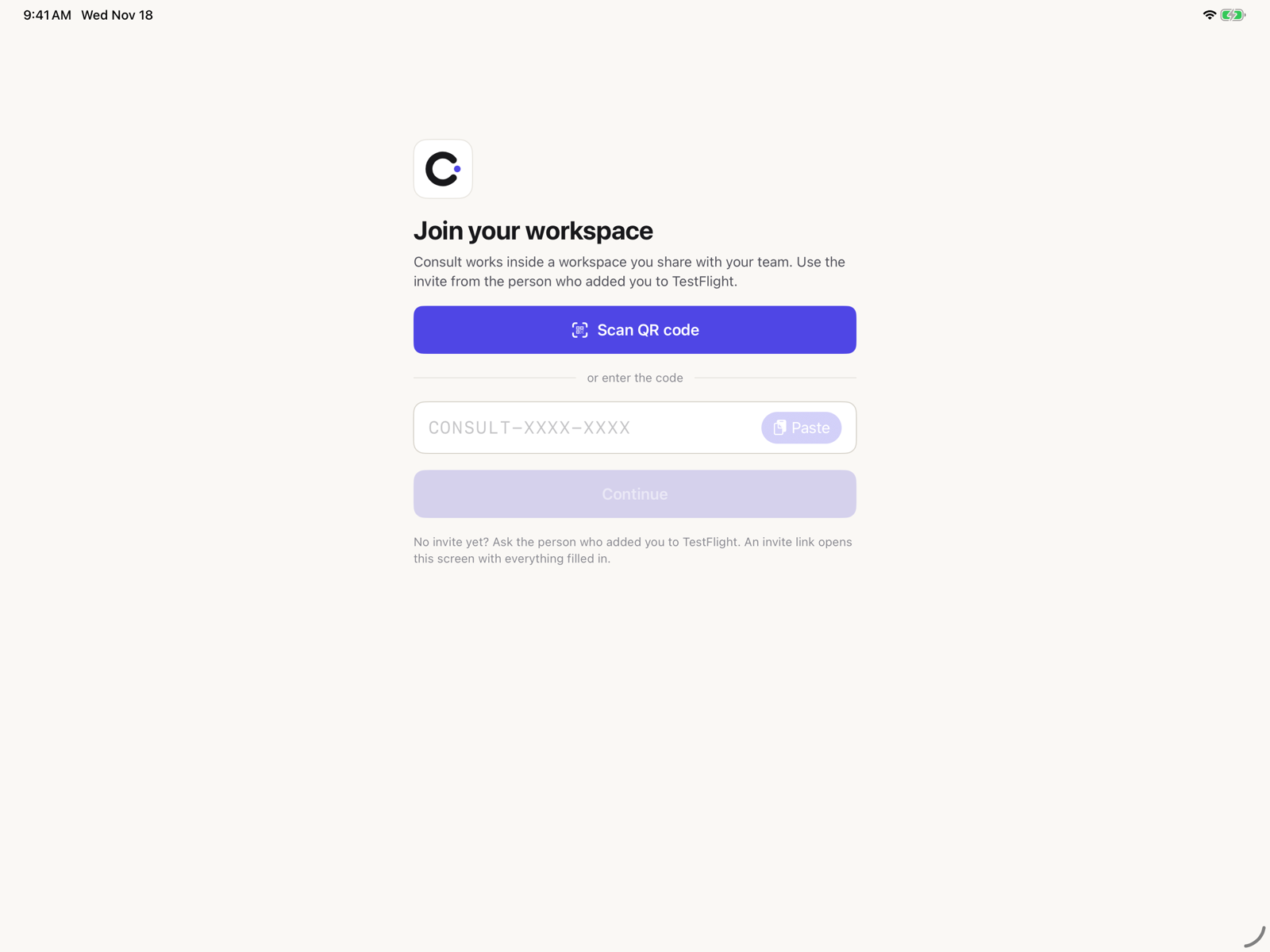
- The first screen is Join your workspace.
- Tap Scan QR code and point at the code in your invite. Or type the code.
- Tap Continue. Consult shows the workspace you joined, with your name from the invite.
- Tap Open Home. Your team's projects and meetings are there.
- To add another workspace later, tap the workspace name at the top of the sidebar.
-
Install
- Open your invitation on the iPad (or Mac). It opens Apple's TestFlight app first if you don't have it.
- In TestFlight, tap Install (or Update) next to the Consult listing.
- Install Consult Mic the same way on your iPhone if you want to use your phone as a room mic.
-
First launch on the iPad
- Open Consult. The first screen is Join your workspace.
- Tap Scan QR code and point the camera at the QR in your invite. Or tap the code field, type the code (it looks like
CONSULT-XXXX-XXXX), or tap Paste. - Tap Continue. The button stays off until there is a code.
- When it works you see You joined workspace as your name. Tap Open Home.
An invite link opens this screen with the code and server already filled in. Tapping the link is the easiest way in. There is no name step: your name comes from the invite.
-
The server address
Your invite fills in the server for you. You only see a Server address field if the code isn't found on a server Consult already knows. Then:
- Look in your invite for the address. It starts with
https://, for examplehttps://workspace.example.com. - Type it in Server address and tap Continue again.
A physical iPad needs a real server address from the invite. It can't use
localhost, because on an iPad that means the iPad itself. - Look in your invite for the address. It starts with
-
My workspace and shared workspaces
- A shared workspace is your team's or class's. It has its own projects, meetings, people and settings.
- My workspace is a private workspace that only some installs have. A fresh install from an invite starts with the workspace you join. Meetings you mark personal stay yours (chapter 10).
-
Add another workspace later
- Tap the workspace name at the top of the sidebar.
- Choose Add workspace….
- Scan the QR, or paste the code, then tap Continue.
- If you belong to more than one workspace, pick between them from the same menu. You can't switch while a meeting is live. The app says Can't switch now.
-
On the Mac
- Open Consult. The first screen asks Who's using this Mac? Type your name and tap Continue. Colleagues see this name on shared meetings and notes. There is no password.
- Use the workspace menu in the sidebar and choose Add workspace… (the sheet is called Join a workspace). Paste your code or invite link.

Good to know
- A code works once and expires after 7 days. If you see That code isn't valid or has expired. Check it for typos, or ask for a new one., ask for a new code.
- If you see That code was already used. Each code works once; ask for a new one., the code was used on another device. Ask for another.
- You can change your name later in Settings under Your name. Meetings already held keep the old name.